
How to turn on Dropr in your store
One switch puts recommendations on your product pages and in your cart drawer. Dropr opens Shopify's theme editor with the switch already on, so you only click Save.
Updated
Before you start
- Dropr is installed. If not, see how to install Dropr.
- Dropr turns the switch on in your published theme, the one shoppers see. If you later publish a different theme, turn Dropr on again there.
- The switch looks for your theme's main product details and its cart drawer. If your theme hides them from Dropr, see what to do when nothing shows.
Turn on Dropr
- In your Shopify admin, open Apps, then Dropr. Dropr opens on its Home page.
- On Home, click Turn on Dropr. Shopify's theme editor opens in a new tab, on a product page, with App embeds open.
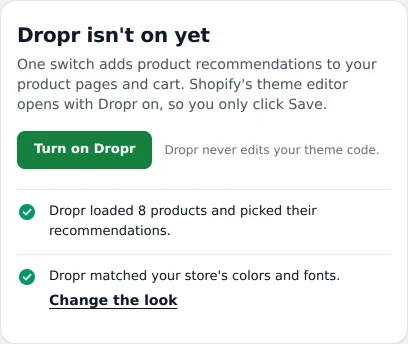
The Turn on Dropr button on Dropr's Home page. - Check that the switch next to Product page and cart recommendations is on. Dropr turns it on for you.
App embeds
Product page and cart recommendationsDroprSimplified view of Shopify's theme editorYour theme's editor looks different, but the labels are the same. - Click Save. Until you click Save, nothing changes on your store.
- Open any product page on your store. Your recommendations show on the page after the main product details.
Turn on Dropr from the theme editor
Use these steps when Dropr's Home page doesn't show Turn on Dropr, for example after a theme change.
- From your Shopify admin, go to Online Store.
- Next to your published theme, click Edit theme. In the theme editor, the published theme shows Live next to its name.
- Click the App embeds icon.
- Next to Product page and cart recommendations, turn on the switch.
- Click Save.
- Open a product page on your store in a normal browser tab.
Check it worked
Back in Dropr, Home says Dropr is on in your theme. If it can't read your theme, it says Dropr isn't live yet instead. Click Open a product page. Dropr goes live the first time someone opens a product page, you included. Previews inside the theme editor don't count, so open the page in a normal browser tab.
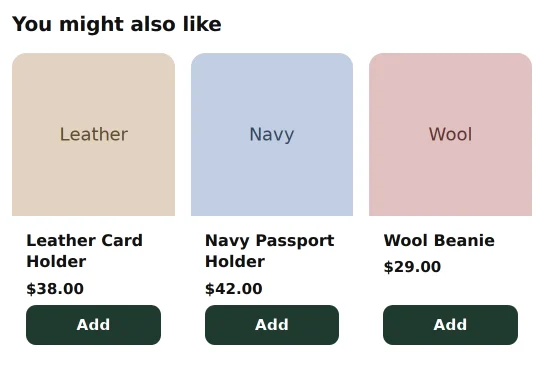
Home then says Dropr is live, and Where Dropr shows up lists your placements with a check mark on You might also like. The cart, called Complete your order, gets its check mark the first time someone opens the cart drawer with a product in it.
Choose where the switch shows recommendations
The switch shows recommendations in two places: the cart drawer, and the product page after the main product details.
- To pick the spot on the product page, add the Product recommendations block in the theme editor and drag it where you want. The automatic one removes itself. See the product page section.
- Optional: To keep only the cart drawer, open App embeds, expand Product page and cart recommendations, turn off Show on product pages, and click Save.
If it doesn't work
- If Home says Dropr isn't on yet and Your theme still has Dropr off., the switch wasn't saved. Click Turn on Dropr again, check the switch, and click Save.
- If Home says Dropr isn't live yet, open a product page on your store. If you closed the theme editor without clicking Save, click Open the theme editor, check the switch, and click Save.
- If Home has no Turn on Dropr button, turn Dropr on from the theme editor.
- For every other cause, see Dropr isn't showing on my store.