
How to change how your recommendations look
Dropr matches your store's colors and fonts on install. To change the style, button, heading or number of products, edit your product page recommendations in Dropr and click Save.
Updated
Before you start
- Your recommendations share one look: the style, button color, price on the button and badge. You set it on You might also like, the product page recommendations, and it applies to Bought together, Popular right now and Recently viewed too.
- Each recommendation keeps its own heading, button text and number of products.
- The cart drawer, checkout, thank you and order status pages aren't edited here. The checkout pages use your checkout's style from Shopify.
Change the look
- In Dropr, open Recommendations.
- Pick You might also like in the list of recommendations. Its panel is called Look, and Preview with your products shows each change before you save.
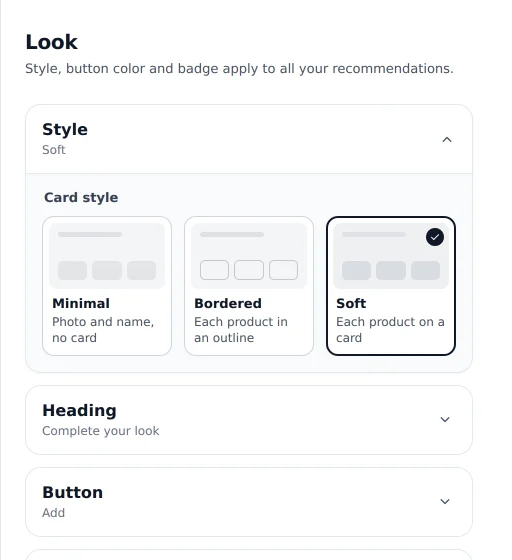
Example dataThe Look panel for You might also like. - Open Style and pick Minimal, Bordered or Soft.
- Optional: Open Button to change the Button color, the Button text, or turn on Show the price on the button.
- Optional: Open Heading, Layout (Grid, Rows or Carousel), Products to show or Badge.
- Click Save.
Check it worked
Reload a product page on your store to see the new look. Bought together, Popular right now and Recently viewed change with it.
Change one recommendation only
In Recommendations, pick it in the list, such as Bought together. Its panel is called Settings and holds its heading, button text, number of products, and its layout where it has one. A note says Matches your look, with a Change the look link back to the shared look. Click Save when you're done.
If the list shows Not added next to it, it isn't on your store yet. Click Add to theme to place it.
To pick which products show, see how to choose which products show with each product.
Turn one recommendation off
Pick it in Recommendations, turn off Show in store, and click Save. The list then shows Off next to it, and shoppers stop seeing it. Turn the switch back on to bring it back.
Change the heading on checkout pages
In Shopify's checkout and accounts editor, click the Dropr checkout recommendations block and type a Heading. Leave it empty to use the heading from Dropr. Click Save. See the thank you and order status pages.
If it doesn't work
If the store still shows the old look, check that you clicked Save in Dropr, then reload the page. If your store had a password when you installed Dropr, Dropr uses its default style. See password-protected stores.