
How to install Dropr on your Shopify store
Install Dropr from the Shopify App Store. The Free plan needs no credit card, and Dropr gets your recommendations ready from your own products.
Updated
Before you start
- You need a Shopify store and permission to install apps on it.
- Dropr starts on the Free plan: up to 1,000 recommendation views a month, with no credit card. See Free vs Starter.
- Dropr needs at least 2 products for sale to recommend anything.
- Dropr reads your products and the products in paid orders. It doesn't store your shoppers' names, emails or addresses. The privacy policy lists everything it uses.
Install Dropr
- Open the Dropr listing on the Shopify App Store and click Install.
- If Shopify asks, log in and pick your store.
- On the Install app screen, review what Dropr can access, then click Install.
- Wait for Dropr to open in your Shopify admin. Its Home page says Loading your products… while it brings in your products, then it matches your store's colors and fonts. You don't need to do anything while it works.
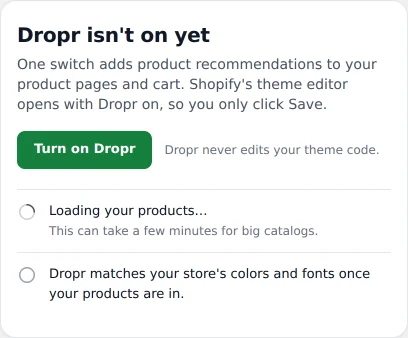
Dropr's Home page while it loads your products.
Check it worked
Dropr shows up under Apps in your Shopify admin. Its Home page says Dropr isn't on yet, with a Turn on Dropr button. Another line says how many products Dropr loaded and that it picked their recommendations.
Good to know
Shoppers don't see anything yet. Recommendations show on your store after you turn Dropr on and click Save in the theme editor.
If it doesn't work
- If Home says Dropr hasn't found products with images yet., add products with images in Shopify, then click Load products again.
- If Home says Dropr found fewer than 2 products for sale, add more in Shopify. Recommendations need at least 2 products for sale.
- If your store has a password, Dropr still installs. Home says Dropr is using its default style while the password is on. See password-protected stores.
- If the install doesn't finish or Dropr doesn't open, email support@heydropr.com with your store's .myshopify.com address.