
How to add each recommendation in the theme editor
Product page, cart page, home and collection placements are blocks in Shopify's theme editor. Dropr's Add button opens the editor with the block in place, so you check the spot and click Save.
Updated
Before you start
- Dropr is on and live in your store. Until then, Dropr's Home page asks for one thing: turn on Dropr. That also covers the product page and the cart drawer.
- Your theme needs to accept apps in its sections. Shopify's own themes, such as Dawn, do. If Add section doesn't show Apps, email support@heydropr.com with your theme's name.
Add a placement from Dropr
- In your Shopify admin, open Apps, then Dropr. Dropr opens on its Home page.
- Under Where Dropr shows up, find the placement you want and click Add. The theme editor opens on that page with the Dropr block added in a new Apps section.
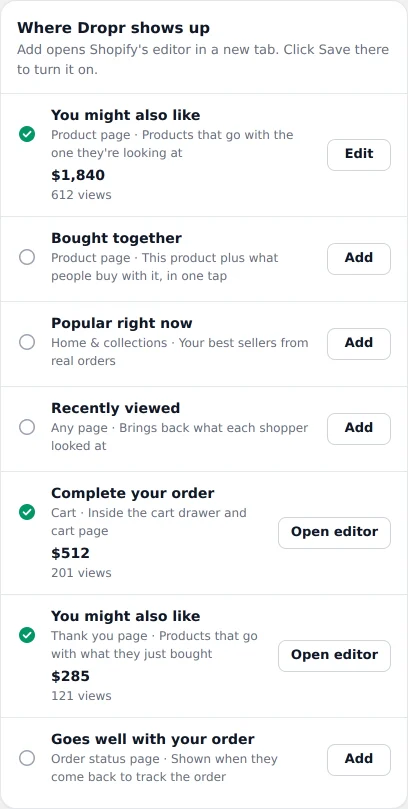
Example dataEach placement has its own Add button. - Optional: Drag the block to another spot on the page.
- Click Save.
- Open that page on your store.
Add a block from the theme editor instead
- From your Shopify admin, go to Online Store.
- Next to your published theme, click Edit theme.
- Open the page you want: a product page, the cart page or the home page.
- Click Add section. In Apps, pick the Dropr block.
Add section: Apps
Product recommendationsDropr+Bought togetherDropr+Popular productsDropr+Recently viewedDropr+Simplified view of Shopify's theme editorOn a product page, the Apps list shows these Dropr blocks. - Click Save.
Check it worked
Dropr marks a placement live after the first visit to a page that shows it. On Dropr's Home page, it then gets a check mark under Where Dropr shows up, and its Add button becomes Edit. Previews in the theme editor don't count, so open the page in a normal browser tab.
You might also like on the product page
Shows products that go well with the one the shopper is looking at, each with its own Add button. In Dropr it's called You might also like. In the theme editor the block is called Product recommendations and works on product pages.
The Dropr switch already shows these after the main product details. Add the block only to put them somewhere else on the page. When the block is on the page, the automatic one removes itself, so shoppers never see two.
To pick the products it shows, see how to choose which products show with each product.
Bought together on the product page
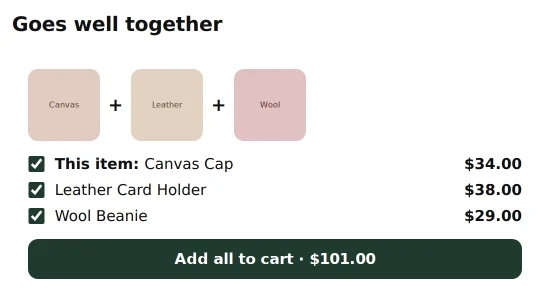
Shows the product plus what people buy with it. Shoppers can untick any of them, then add the rest with one Add all to cart button. The block is called Bought together and works on product pages only.
Dropr picks products that show up in the same paid orders on your store. Until your store has enough orders, it fills the box with products that go well with this one.
Recommendations in the cart drawer
The cart drawer has no block. It comes from the Dropr switch, Product page and cart recommendations, in App embeds. On Dropr's Home page it's called Complete your order, and its Add button opens the theme editor with the switch on. See how to turn on Dropr.
Recommendations show when the drawer opens, and leave out what's already in the cart. If your theme sends shoppers to a cart page instead of a drawer, add the cart page block.
Recommendations on the cart page
The block is called Cart recommendations and works on the cart page only. Dropr's Home page has no Add button for it, so add it from the theme editor: open the cart page, click Add section, pick Cart recommendations in Apps, and click Save.
If you set a Minimum cart total in Dropr's Settings, recommendations in the cart drawer and on the cart page wait until the cart reaches that amount.
Popular right now on any page
Shows your best sellers by units sold in the last 90 days. Until your store has orders, Dropr fills it with your newest products. In Dropr it's called Popular right now. In the theme editor the block is called Popular products.
It works on any page. Dropr lists it under Home & collections, and its Add button opens your home page. A collection page works well too.
Recently viewed on any page
Shows the products this shopper opened, saved in their own browser only. The block is called Recently viewed and works on any page.
A shopper sees it once they've opened at least one other product. It stays hidden for a shopper who said no to preference cookies in your store's cookie banner. It remembers each product page a shopper opens while the Dropr switch is on, so turn Dropr on too.
If it doesn't work
- If the block doesn't show on your store, check that you clicked Save in the theme editor and that you're looking at your published theme.
- In the theme editor, a Dropr block with nothing to show yet says what it's waiting for: Products that go with this one show up here., Add products and get a few orders to see what's bought together here., Your best sellers show up here. or Products the shopper opened show up here after they browse a few. On your store, it stays hidden until it has products to show.
- If Home doesn't list Where Dropr shows up yet, Dropr isn't live. Turn on Dropr first, or add a block from the theme editor.
- For every other cause, see Dropr isn't showing on my store.