
How to choose which products show with each product
Dropr picks the products that show with each of yours. On Dropr's Products page you can reorder them, remove one or add your own, and each change saves by itself.
Updated
Before you start
- Dropr is installed and has loaded your products. See how to install Dropr.
- The Products page lists up to 500 products that are for sale, by name.
- Your choices show with that product in You might also like on the product page, in the cart when it's the first product there, and on the checkout, thank you and order status pages. Bought together uses them while your store has too few orders of its own. Popular right now and Recently viewed don't use them.
Change the products for one product
- In Dropr, open Products.
- Find the product. To look for it by name, type in Search products.
- To change the order, drag a product in Shown with it to a new place. Shoppers see them in this order.
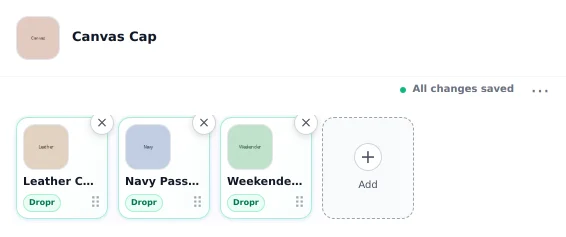
Example dataOne product and the products shown with it. - To remove one, click the × on it.
- To add your own, click Add and pick one or more products in the window Shopify opens. Dropr marks them Yours.
- Check that the row says All changes saved. Each change saves by itself, so there's no Save button.
Check it worked
Open that product's page on your store and reload it. You might also like shows the products in your order, up to the number in Products to show on Dropr's Recommendations page. That's 3 unless you changed it. Dropr skips products that are sold out or already in the cart.
Undo your changes
To go back to what Dropr picked for one product, click ⋯ next to All changes saved, then Reset to Dropr's picks. If you remove every product from a row, Dropr shows its own picks again too.
If a product is missing
Dropr brings in new and changed products from Shopify by itself. If one is still missing, click Update products from Shopify. The page says this can take a couple of minutes. Reload it to see them.
If it doesn't work
If the product page still shows the old products, reload it once more. If You might also like isn't on the page at all, see Dropr isn't showing on my store.